Use Proper Headings To Create Accessible Page Structures
The code to accompany this post is "Headings". Screen reader required!
At a glance, sighted users can scan a page to understand its structure, hierarchy, and key sections. Users navigating with screen readers, for example, need that same structure communicated programmatically using properly marked-up heading elements.
Good headings act like a table of contents for your page. They help all users, not just those using assistive technology (AT), navigate content efficiently.
Why headings matter
According to the 2024 WebAIM Screen Reader Survey, 71.6% of respondents said they frequently navigate through headings. The usefulness of heading levels has continued to rise, with 88.8% reporting them as "very or somewhat useful" for finding information.
Despite those statistics, the most recent WebAIM Million Project found that 39% of home pages skipped heading levels, and nearly 10% had no headings at all - a clear sign that many pages lack accessible structure.
There are two parts to using headings effectively:
- Structuring your content with the correct semantic HTML elements.
- Writing clear, descriptive headings that reflect the content they introduce.
Good structural heading practices
Use headings to create a clear, logical outline of your page content by following these semantic rules:
- Use one
<h1>per page for the main topic (often matching the page title). - Use
<h2>through<h6>to create a meaningful content hierarchy. - Don't skip heading levels within the same section (e.g. avoid jumping from
<h2>to<h4>). - Avoid using heading elements purely for visual styling - use CSS instead.
Clear and descriptive headings
Think of headings as an outline for your content that helps everyone, including those using AT, navigate easily. They should also:
- Describe the section that follows and set clear expectations.
- Make sense when read out of context (e.g., in a screen reader's heading list).
- Clearly reflect the content they introduce.
- Be understandable on their own, without additional context.
Screen reader heading naviation examples
Code: There is some code associated with this post that you can run and interact with.
Screen reader users rely on headings for quick navigation. Here are common ways to access heading lists and navigate between headings using the NVDA and Narrator screen readers.
NVDA Headings navigation
On page navigation: Press H to jump to the next heading, Shift + H to go to the previous one.
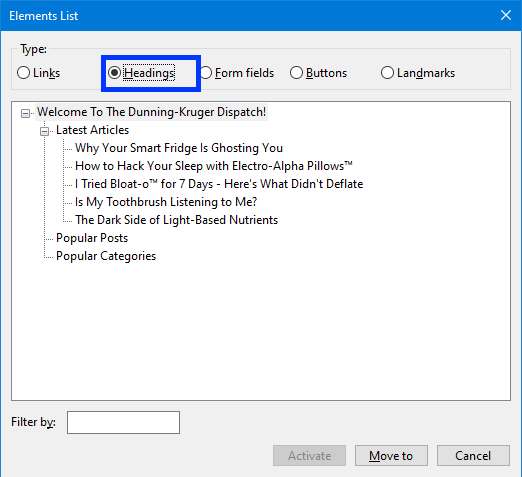
Alternatively, using the Elements List functionality:
Press <NVDAKey> + F7, then Alt + H to open the headings list the user can navigate this list to select the heading they want.
Narrator Headings naviation
On page navigation: Press H to jump to the next heading, Shift + H to go to the previous one.
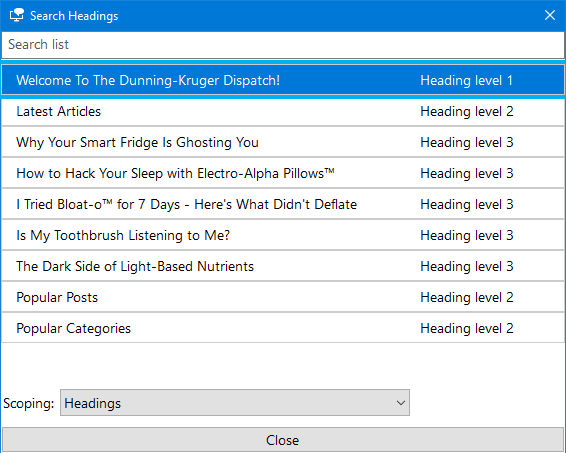
Alternatively, using the Elements List functionality:
Press Insert + F6 to open the headings list and select the heading they want.
Demonstration
In the section of the below video (8:43 to 10:44), accessibility expert Leonie Watson demonstrates how proper headings help screen reader user to navigate a page's content.
WCAG Success Criteria
These WCAG success criteria relate to the accessibility topics covered in this post.
1.3.1 Info and Relationships (AA) - Information, structure and relationships must be clear in code or available as text so assistive technologies can understand them.
2.4.6 Headings and Labels (AA) - Headings and labels should clearly describe the topic or purpose of the content they refer to.
2.4.10 Section Headings (AAA) - Headings should be used to organize sections of content so people can navigate and understand the page structure.